How to Remote Control Netflix from Your Phone
You're hosting a Netflix watch party. You're curled up on the couch, laptop on the coffee table, lights off. Someone asks to rewind 30 seconds. Now you have to sit up, reach for the laptop, find the tab, and scrub back. The moment is gone.
Not anymore.
Watch Netflix Together now lets you control playback directly from your phone. Pause, play, skip, and rewind, all from the palm of your hand, without ever touching your laptop.
How It Works
The remote control connects your phone to your active watch party session. It takes about 5 seconds to set up:
1. Start a session as usual
Open Netflix, start a Watch Netflix Together session from the sidebar, and share the link with your friends. Nothing changes about the core experience.
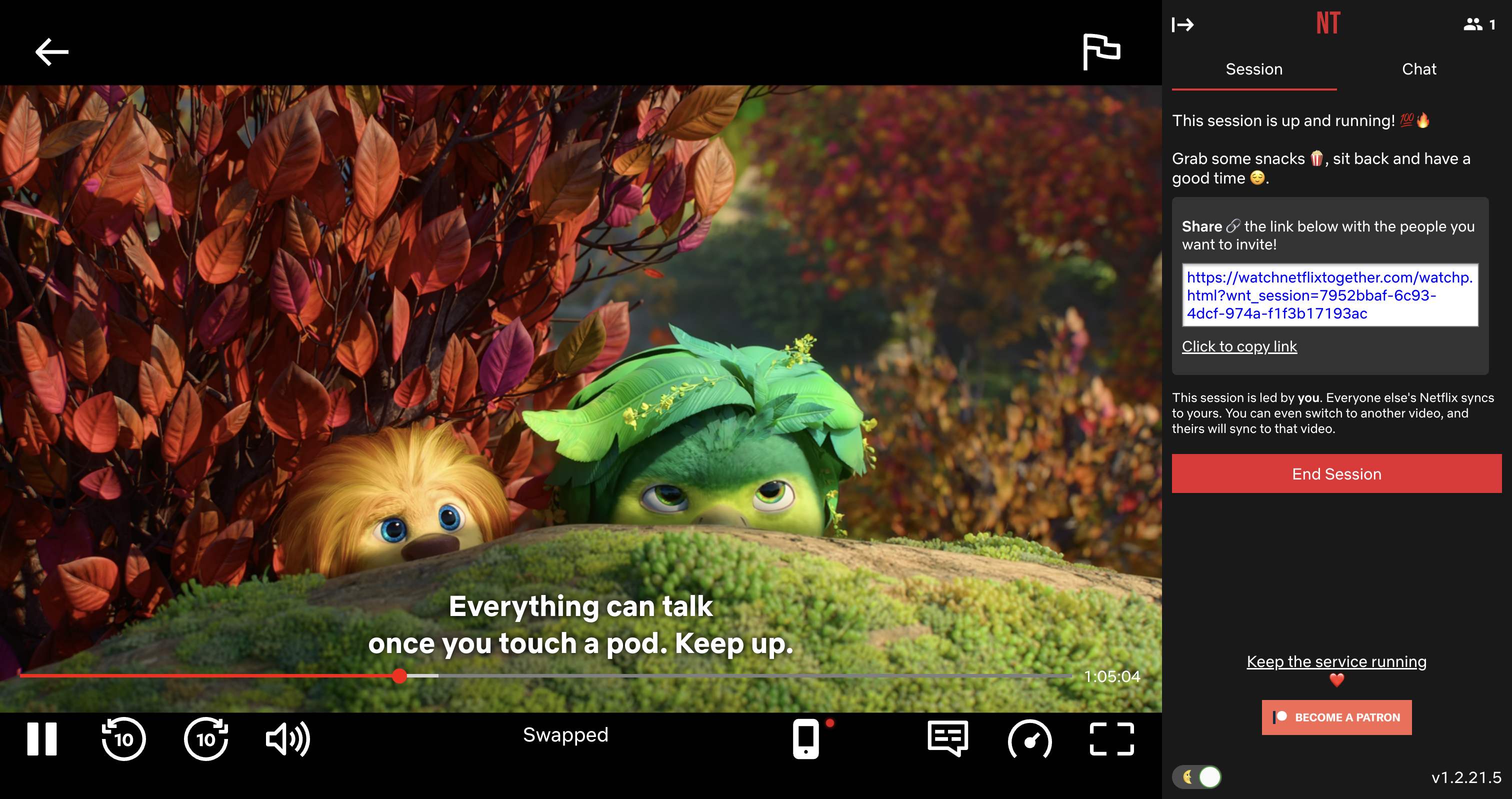
2. Hover the phone icon in the Netflix player
While watching, you'll notice a phone icon in the Netflix control bar (next to the fullscreen and subtitles buttons). Hover over it to see the remote control option.
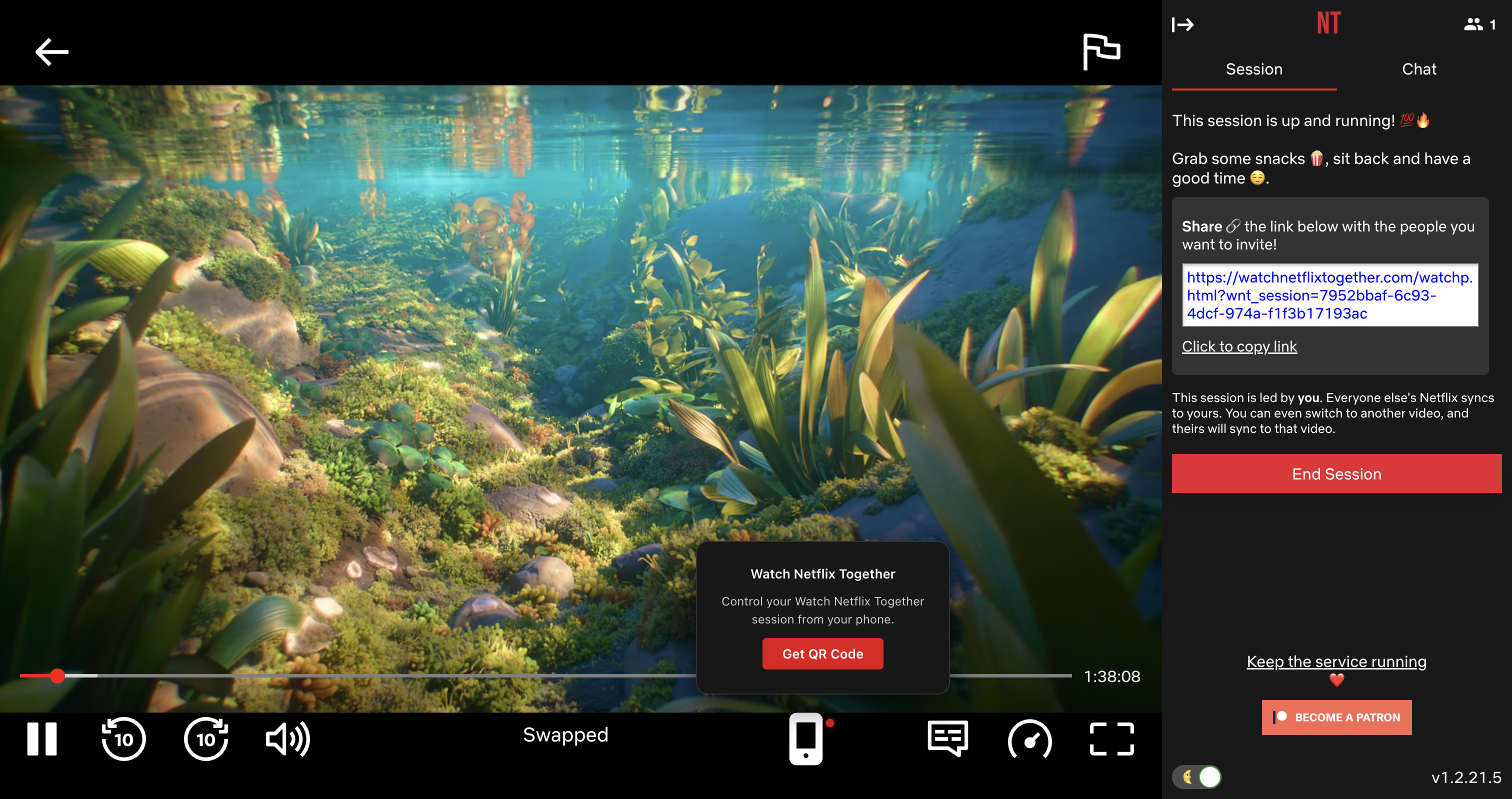
3. Click "Get QR Code"
A QR code appears right on top of the video. Scan it with your phone's camera. No app needed, it opens right in your browser.
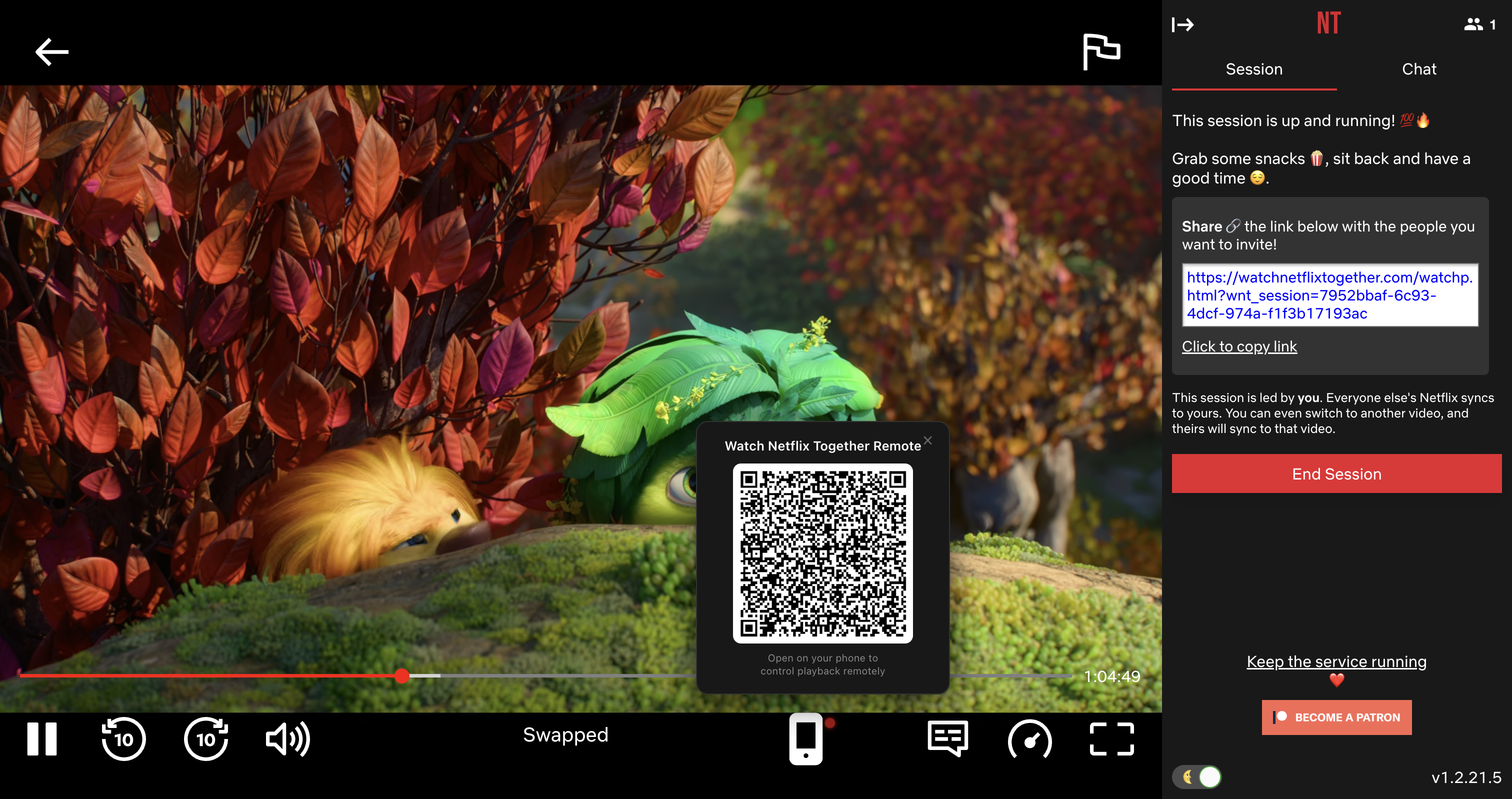
4. Control playback from your phone
Your phone instantly becomes a remote control. You get:
- Play / Pause with a big, easy-to-tap button
- Skip forward / back 10 seconds or 30 seconds
- Scrub bar to drag to any point in the episode
- Episode info so you can see what's playing and how much time is left
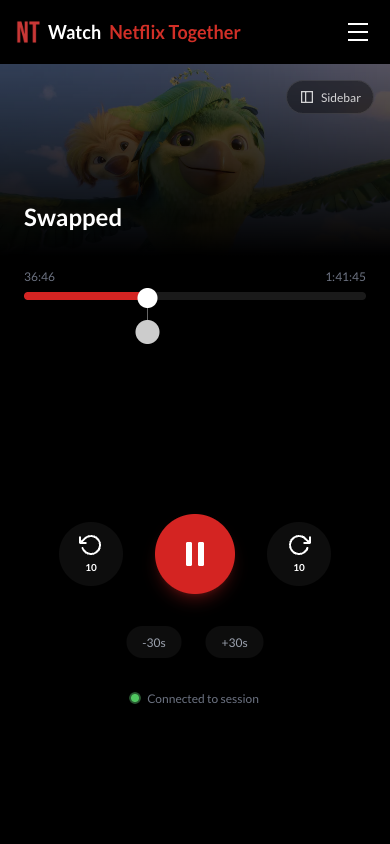
Every action you take on the phone syncs to everyone in the session. Pause on your phone, and everyone pauses. Skip forward, everyone jumps ahead.
Why Use the Phone Remote?
Couch-friendly
Your laptop is across the room, connected to the TV. Your phone is in your hand. The remote lets you control everything without getting up.
Less disruptive
Fumbling with a laptop trackpad in a dark room is awkward. A big play/pause button on your phone is not.
Works for the host
The remote control is available to the session host. Since you're leading the watch party, you're the one who needs quick access to playback controls.
No app required
The remote opens in your phone's browser. There's nothing to install. Scan the QR code and you're connected.
Tips for the Best Experience
- Keep your phone nearby. The remote stays connected as long as the browser tab is open.
- Lock your phone orientation. The remote is designed for portrait mode.
- Use it with a TV setup. The remote really shines when your laptop is connected to a TV via HDMI and you're watching from the couch.
- The QR code is session-specific. Each session generates a unique QR code, so there's no risk of someone else controlling your playback.
Frequently Asked Questions
Does the remote work for everyone in the session?
Currently, the remote control is available to the session host (the person who created the session). Followers sync to the host's playback automatically.
Do I need to install anything on my phone?
No. The remote opens in your phone's default browser. It works on iPhone, Android, and any device with a modern browser.
What happens if I close the remote tab?
The session continues normally. You can re-scan the QR code to reconnect, or just control playback from your laptop.
Is this a premium feature?
The remote control is available to all users as part of the free extension.
Try It Now
The phone remote is available in the latest version of Watch Netflix Together. Start a session, scan the QR code, and control Netflix from your couch.
Your friends won't even know you're not at your laptop.
Ready to start watching together?
Get the free extension